Create your first Listings
Reading time: 5 minutes Video time: 17 minutes
Start here
Listings is where you go to create and edit the offers that appear on your campaign website. On this page we walk you through the steps to easily create your website listing.
Set up a website
Learn how to create a website
Add a listing to my website
Watch this video to learn how to add a listing to my website.
This video includes:
- Adding a new listing to my website
- Filter my offers by categories, experiences and rewards
- Refine my search with more filters
- Remove rewards and offers from my listing pot
- Change the Terms of Offer for offers on my listing pot
- See an overview analysis of my listing pot
- Lock, unlock and set rules for my listing pot
- Rename my listing pot
- Add a second listing pot to my website
- See my listing pot populated on my website page
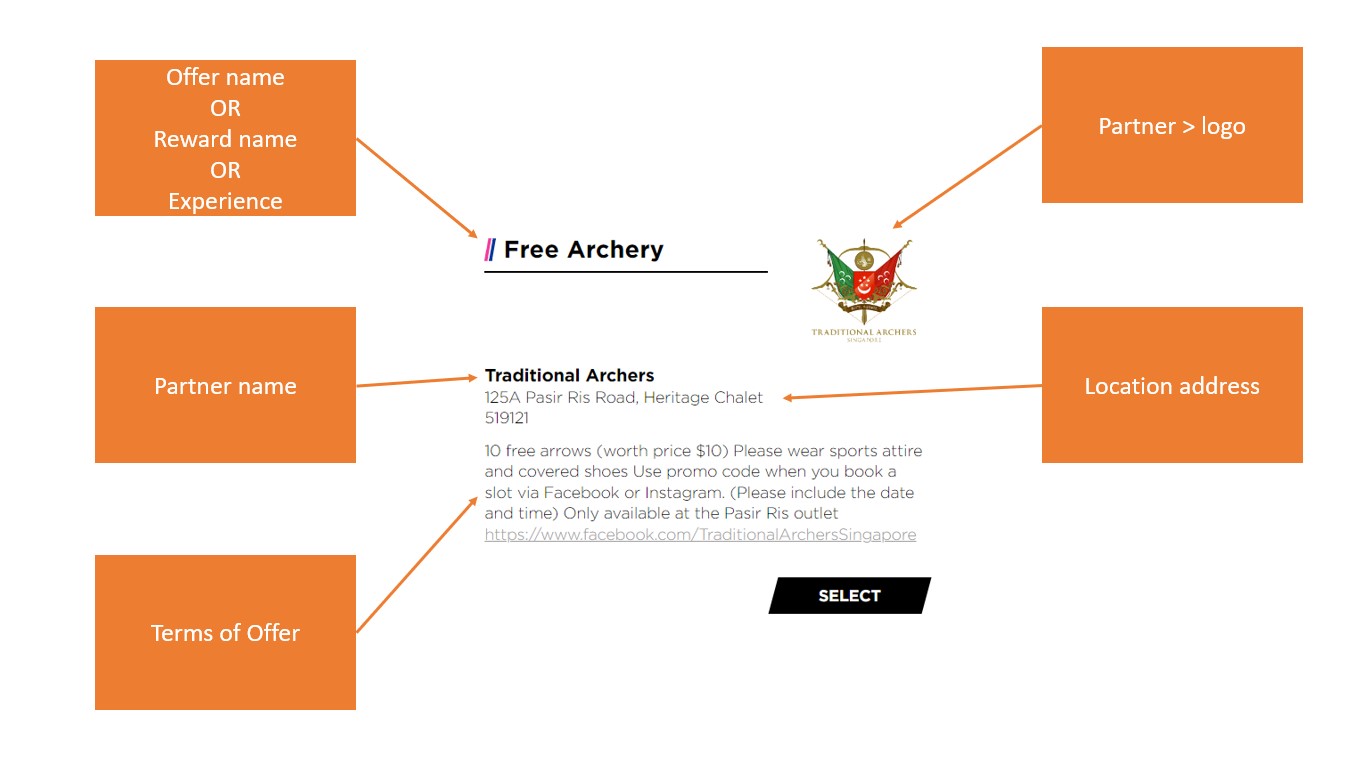
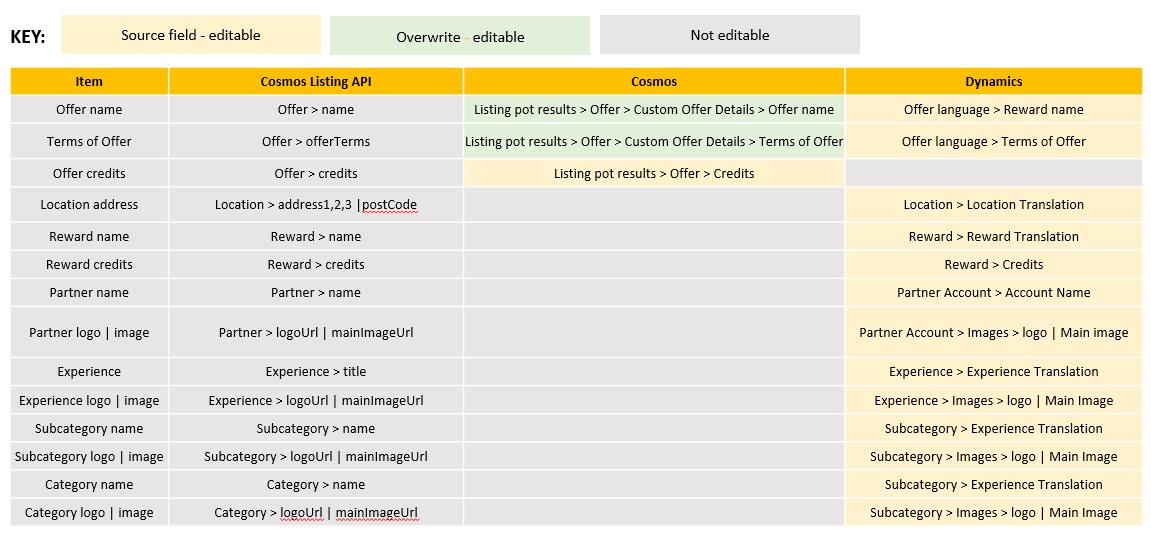
Where is the partner data on my website coming from?
The following example and table show you where the Listings API fetches partner data from and where you can change it if it is missing or has errors. If the website is built by an agency, they can see the full technical details of the API on this link. All they will need is the API key available on your Website page on Cosmos.
Top tip!
If you change data in Dynamics it will change for every website. If you change data in Cosmos it will change only on the offer and website you edit on Cosmos. Once you have overwritten data for an offer on Cosmos, it will not change with Dynamics data again unless you 'reset to default'.
This means you can make mass changes quickly and easily, for example if a partner changes address. You can also make website specific changes for your clients such as campaign specific credit values, offer names and terms of offer.