Cosmos Client Portal login
Reading time: 5 minutes
Setting up Client Sign In with Multi Factor Authentication in our Cosmos Platform is the same procedure as most cloud services.
Access to the Client Portal utilises Microsoft AAD and follows the standard steps defined by Microsoft.
Step-by-Step Guide
-
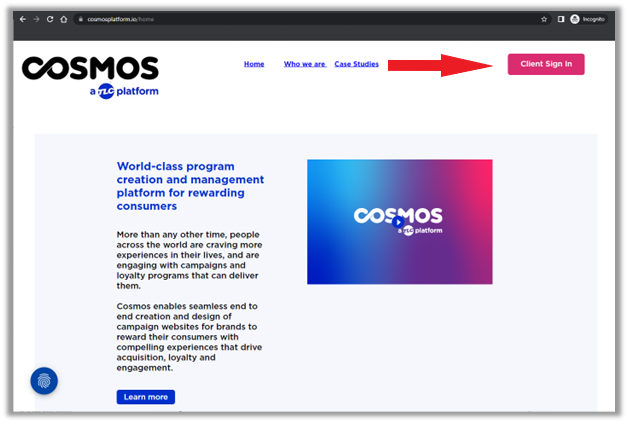
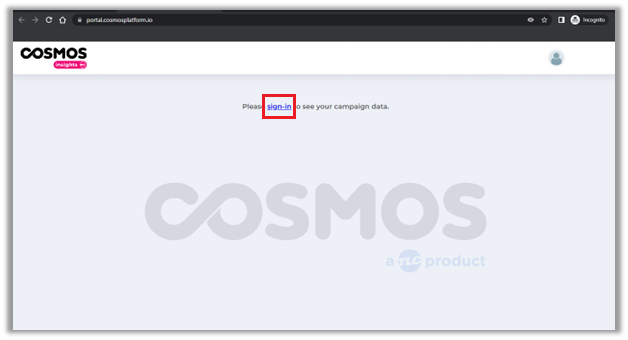
Click on the Client Sign In button on the Cosmos Platform website.
-
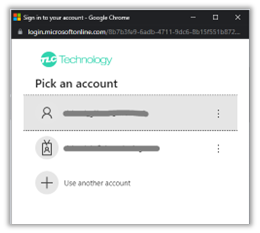
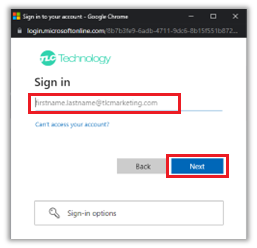
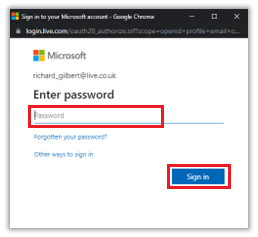
Enter your email address and password.
-
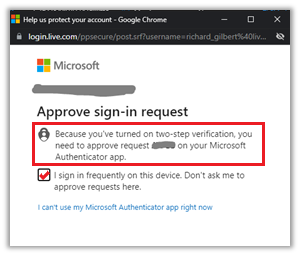
Approve the sign-in request e.g. via the Microsoft Authenticator App or SMS and tick the box ‘I sign in frequently on this device. Don’t ask me to approve requests here'.
-
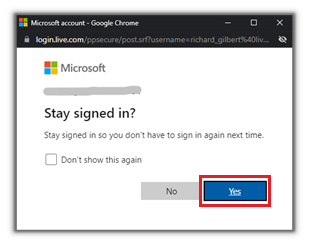
Click YES to accept to stay signed in.
-
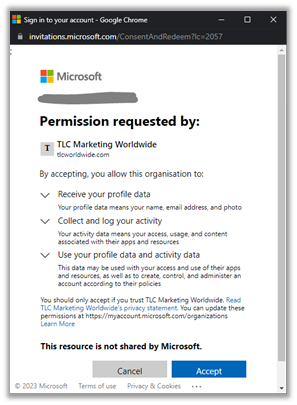
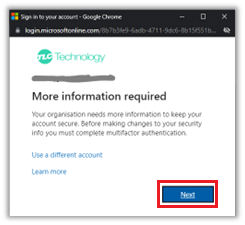
Accept permission request from TLC Marketing Worldwide and click Next when prompted to provide more information.
The next steps relate to MFA. These steps are for Microsoft Authenticator App but you can use your preferred authenticator app or SMS.
-
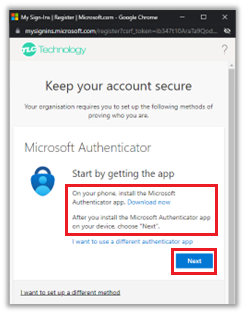
Open the Microsoft Authenticator App on your phone or “choose I want to use a different authenticator app” (install it if you do not have it or use SMS) and click Next.
-
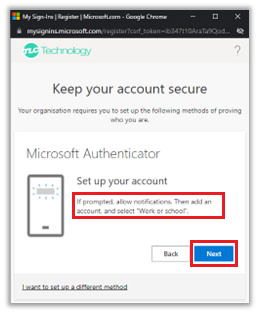
Allow notifications on the Microsoft Authenticator App if prompted and then click Next.
-
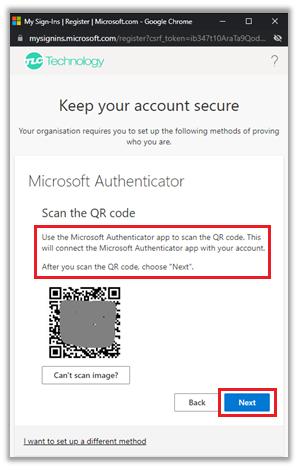
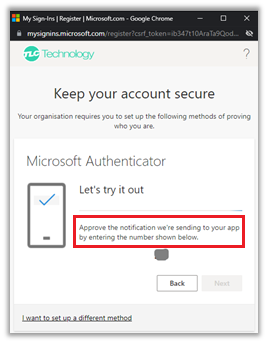
Scan the QR code shown on the screen and follow the steps to approve the notification.
-
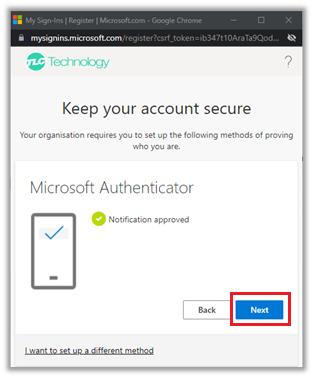
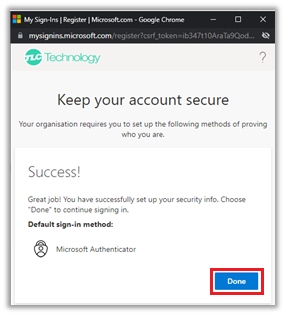
Once the notification has been approved, click Next and then Done
-
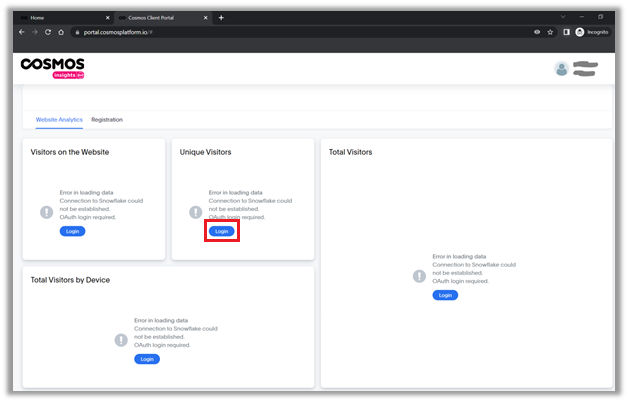
You will be redirected to the Website Analytics tab. on the Unique Visitors tile, click Login.
-
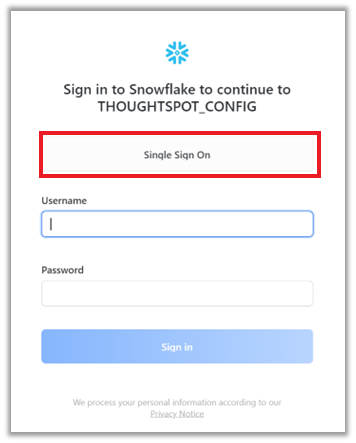
Click on Single Sign On (do not enter your username and password).
-
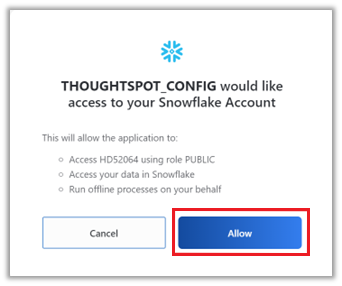
Allow ThoughtSpot to access your Snowflake Account.
-
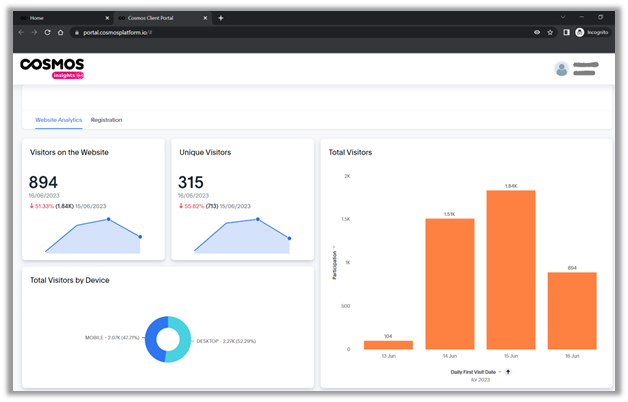
You can now view your campaign dashboards in the Website Analytics and Registration tabs.