Zendesk Cheat Sheet
Zendesk is a cloud based customer service software to help manage the customers communication with you.
Quick Start:
- Go to view Unassigned tickets
- Click ticket to open it
- Click take it (top of panel on left above Assignee)
- Read content
- Change Priority if required
- Select Query Type
- To respond
- Apply Macro
- Type public reply
- Internal note
- Select Close tab/Next ticket/Stay on ticket
- Select Submit as New/Open/Pending/Solved
- Click Submit
#Log in:
To log into Zendesk, enter the below link in your browser (chrome is preferable, a must if you want to use calls):
https://tlcmarketing.zendesk.com/agent/dashboard
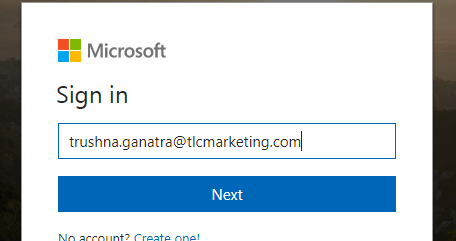
Your account will be linked to your TLC account, enter your TLC email address, choose to sign in with Microsoft.
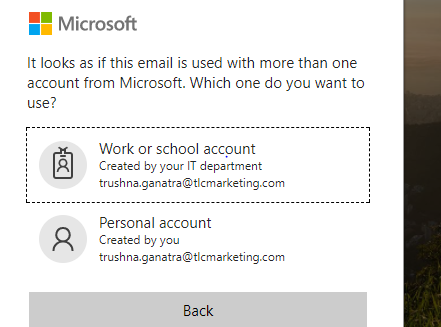
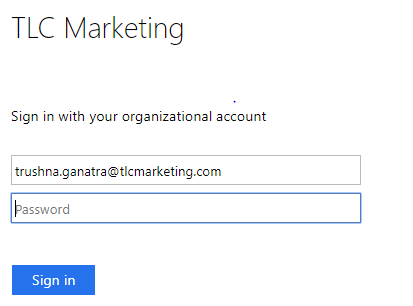
Click on Work or School account and enter your TLC Password.
1 Answer a Ticket
Log in to your Zendesk, then click the Views icon ................ in the sidebar.
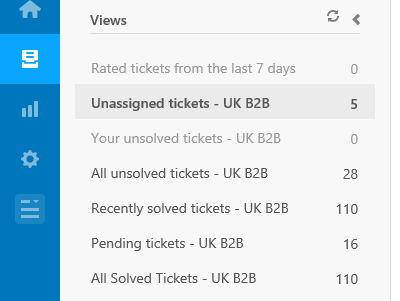
You'll find new tickets in the Unassigned Tickets view. Click the title of that view.
On the right of your screen you will see the tickets (emails) from customers that have been received into Zendesk but have not yet been assigned to you or any other agents. 
- An eye
 appears beside a ticket if another agent is looking at it.
 - You will see a colored box to show the stage of the ticket, all unassigned tickets will show the letter n in a yellow box to represent that the ticket is new.

- The Subject of the ticket will be the email subject as written by the customer.
- Every ticket contains the name of the person who has sent the email, referred to as the Requester.
- You can see when a ticket is received in the Requested.
- Each campaign is assigned with a priority - Low, Normal, High or Urgent, these can be changed individually by ticket if needed.
- The priorities of a campaign will drive the Next SLA breach, a green box will show you the days/hours/minutes till you’re out of the service level agreement to reply to the customer. If the box is red then the time shown will be the days/hours minutes you are out of your SLA.
- Every TLC market has a Group, which all agents belong to.
- All e-mails are associated to a Job Number and have a Job Description.
2 To view a ticket click on a ticket in the unassigned the list and it will open.
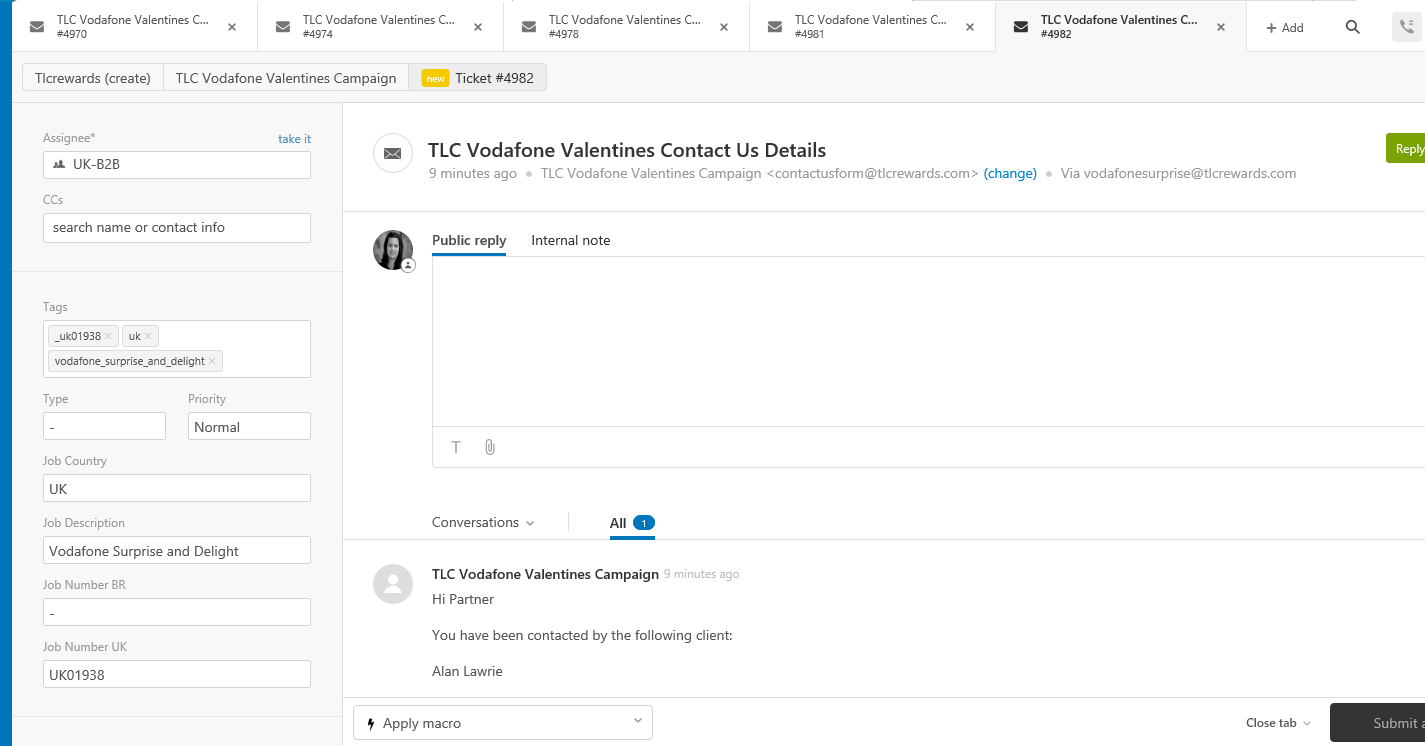
2.1 By default, any comment you enter is as a Public Reply, this will be the reply you send to the customer when you click on Submit as.. button at the bottom right of your screen
.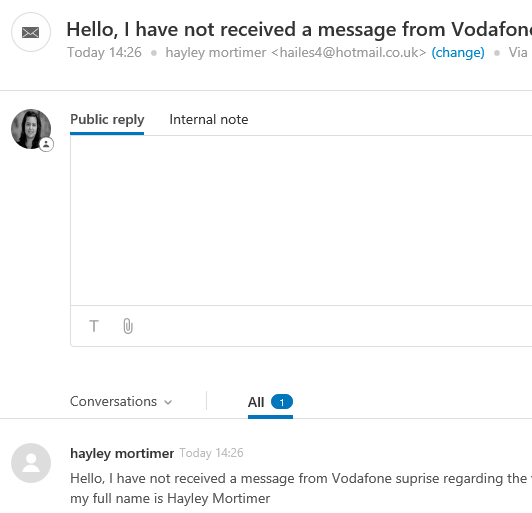

- You can also add private comments (referred to as an Internal Note). The requester never sees these notes, they are used for internal communication only. For example, an agent may need to get advice from another agent to solve the requester's query/issue. If you want to add an internal note, just click that tab, enter your notes and submit the ticket to save the notes.

-
Just below the title of the support request, you see the date and time the ticket was created and where the ticket originated from. In this case, the request was sent via email. Zendesk shows you what channel was used to generate the ticket.

-
To the left of the ticket conversation you'll see the ticket fields. For now, we're only concerned with the Assignee field
All tickets need to be assigned to an agent so that they can be solved and closed. \if you would like to assign the ticket to yourself, click on take it. If you would like to assign the ticket to another agent you may select the assignee drop down.
- The first property is the ticket type and there are four pre-defined choices: Question, Problem, Incident, and Task. The ticket type is selected manually by you once you have read the first request and understand the issue.
![https://zen-marketing-documentation.s3.amazonaws.com/docs/en/gsg_type_select.png]
Question is used to indicate that the requester's issue is a question rather than a problem that needs to be solved.
Problem is used to indicate that the requester is having an issue with a reward/product or service.
Incident is used for occurrences of a problem that affects more than one person. Incident tickets are linked to a problem ticket and when the problem ticket is solved all the incidents of that problem are solved automatically at the same time.
Task is used when you want to assign the ticket as a task to a specific agent. When you select Task, you also set the Task Due Date.
- Apply Macro

Macros are pre-defined responses that you can easily apply to any ticket. An example of where a macro is useful is replying to customers' requests to ask about a mechanic. Rather than having you respond to each of these inquiries by creating separate responses, one response can be created by your manager that all agents can use.
- The ticket life cycle
Each ticket has a life cycle. In other words, the stages it goes through as it arrives in Zendesk Support until it is solved.
![https://zen-marketing-documentation.s3.amazonaws.com/docs/en/gsg_submit_button.png]
Here are the stages:
-
When a Zendesk Support request first arrives, it becomes a ticket and is automatically set to New.
-
When an agent is assigned to the ticket, the agent will set it to Open.
-
If the agent has a follow up question for the customer, the agent will set the ticket to Pending, which means that the agent is waiting for more information from the customer.
-
When the agent resolves the issue, they will set the ticket to Solved.
-
Finally, after a certain number of days, the ticket is automatically Closed and archived for later reference. Agents will never manually set a ticket to closed (which is why you don't see it as an option on the Submit button).
-
Close Tab
If you did not leave an internal note or a public reply you may wish to close the tab. Click on close tab and choose to close the tab, view the next ticket or stay on.

-
Views:
By Submitting a ticket you are likely to change where it belongs in the views list.
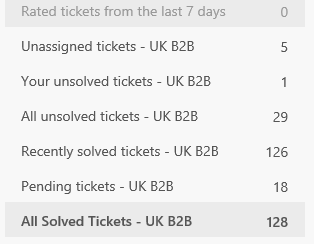
Unassigned Tickets – are tickets that have not been assigned to an agent
Your Unsolved Tickets – are tickets that have the status open, these should have been assigned to you.
All Unsolved Tickets – are all the tickets that are unsolved for the whole team.
Recently Solved Tickets – recently solved tickets will have been recently submitted as solved.
Pending Tickets – are tickets submitted with the status pending and you are waiting on information.
All Solved Tickets – will show you tickets that have been solved, not just recently.
- Forwarding a ticket to a non Zendesk User
Unlike emails you do not have a button that allows you to forward an email immediately on to a non- Zendesk user.
In a ticket, next to the ticket requester's name, below the ticket title, click Change.

Edit the requester field to be the non-Zendesk user you want to share the ticket with.

Add a public comment and click Submit.
