Add a batch of Partner Redemption Codes
Reading time: 5 mins
Overview
This guide explains how to add a batch of partner redemption codes to Cosmos so that they can be distributed to consumers who claim them on websites built on Cosmos or an external website using the Cosmos Claim API
Before you start
- Check that the Redemption Code Type is set to ‘Partner Redemption Code’ on the Offer on Dynamics
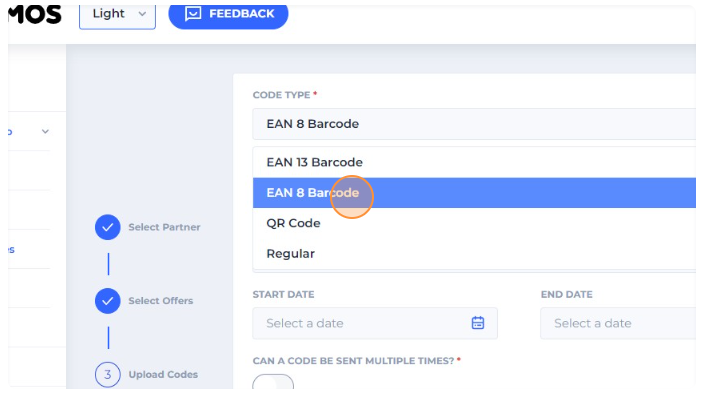
- Make sure you know what kind of codes your partner will provide for their offer: QR code, EAN 13 barcode, EAN 8 barcode or Regular code (alphanumeric)
- Have the batch of codes ready and saved in a csv format
we can only have Barcodes and QR codes on vouchers for Offers with Partner Redemption Codes
Step by Step
-
Navigate to https://admin.cosmosplatform.io
-
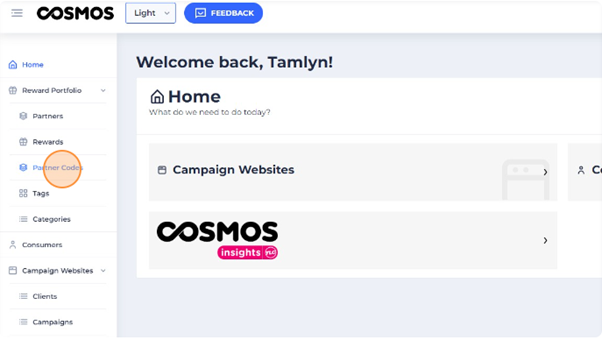
Click "Partner Codes" from the “Reward Portfolio” section of the navigation panel
-
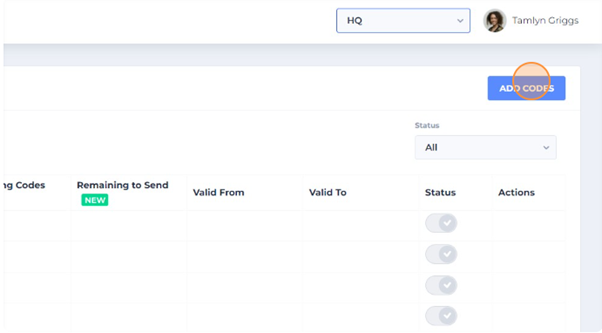
Click "ADD CODES"
-
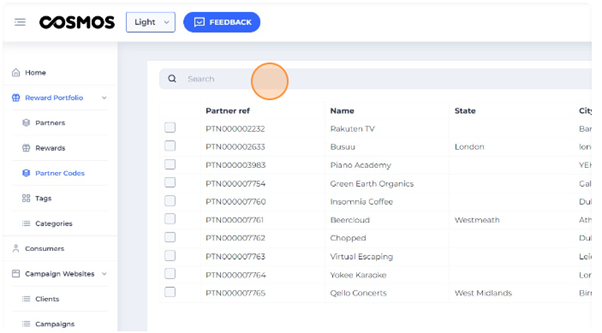
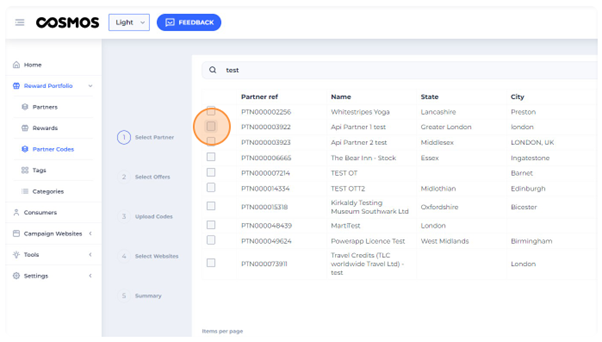
Search for your partner, select your partner and click "NEXT"
 !
!
-
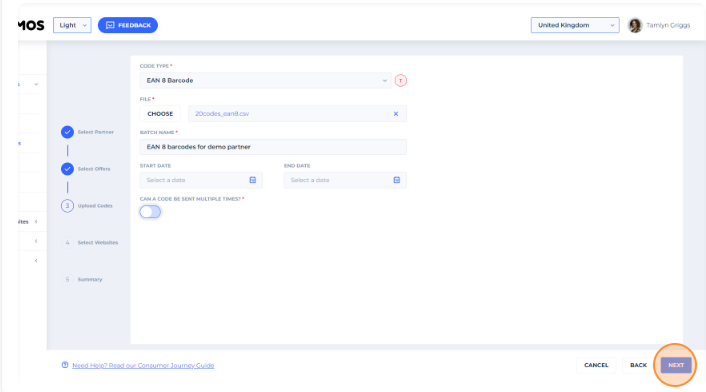
Select your "CODE TYPE"
-
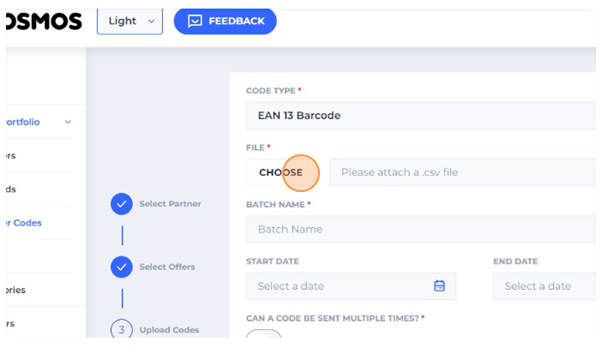
click "CHOOSE" to upload a csv. file with the batch of codes. Each code should be on a separate row in the first column.
-
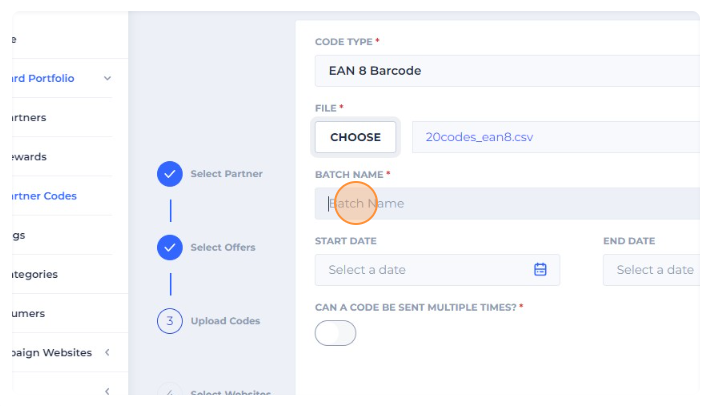
Give the batch of codes a name and select a start and end date for your batch
these codes will not be sent to consumers before the start date or after the end date. If you leave this open it will not be restricted
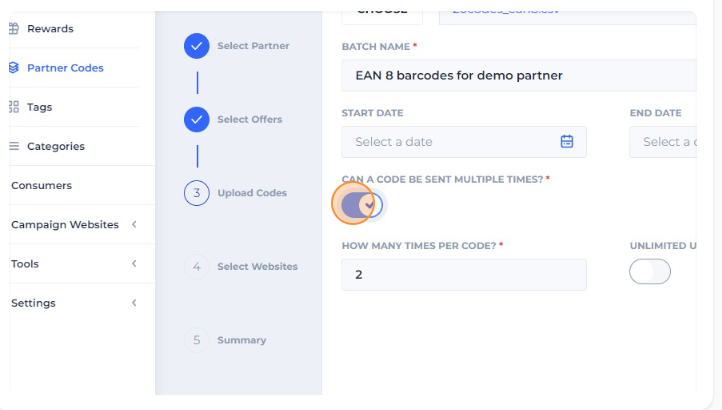
- Optional: toggle on 'CAN A CODE BE SENT MULTIPLE TIMES"
If you toggle on then you must also specify the number of times the same code can be sent to different consumers or whether this is unlimited. Cosmos will send the first code on the csv the number of times specified before moving onto the next code.
By default, with the toggle off, each code will be send only once from the batch i.e. treated as a 'unique code'
-
Click "NEXT"
-
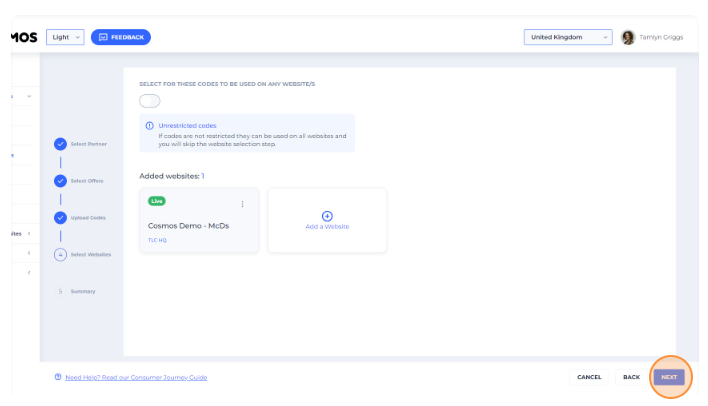
Optional: toggle on "SELECT FOR THESE CODES TO BE USED ON ANY WEBSITE"
if you toggle on, this means that Cosmos will send one of these partner redemption codes to any consumer that claims this offer from any website on Cosmos
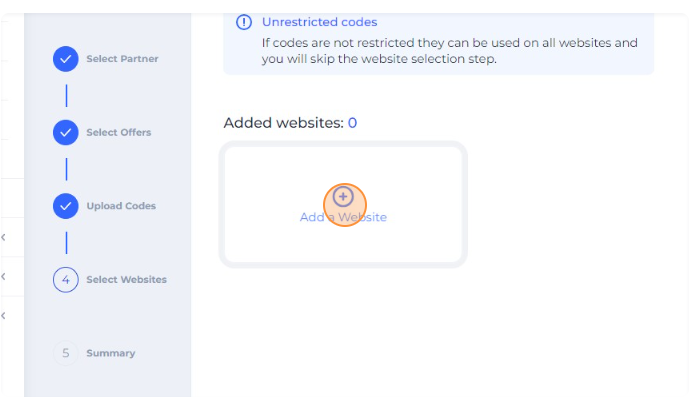
- Click "Add a website"
Note: if you add a website(s), codes from this batch will only be sent to consumers who claim this offer from the selected websites
-
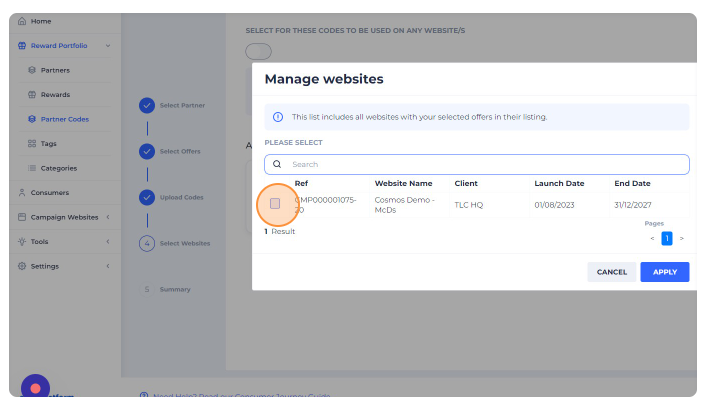
Search for and select the website(s) for this batch
-
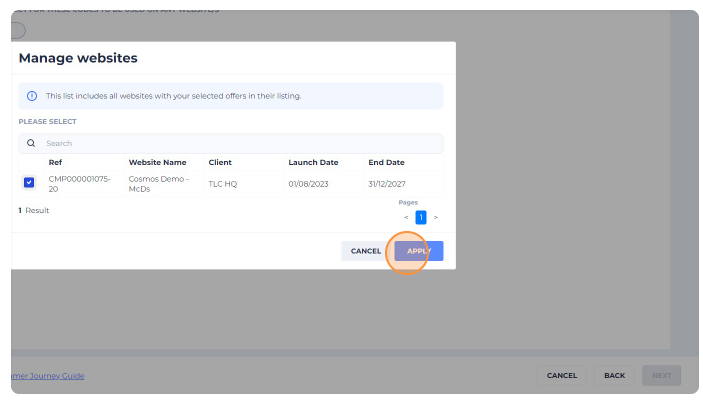
Click "APPLY"
-
Click "NEXT"
-
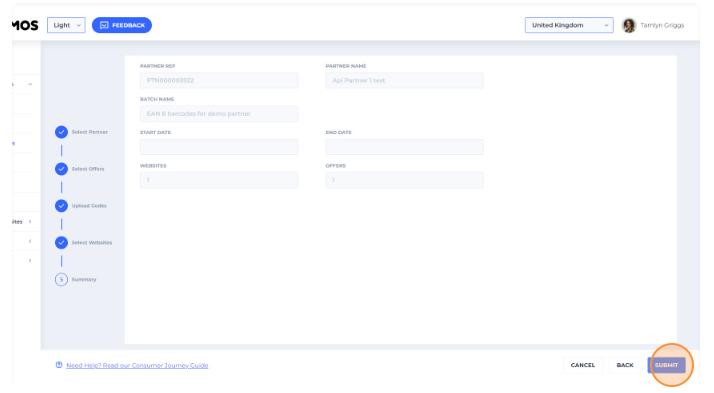
Review the summary of your batch, and if you are happy with it, click "SUBMIT"
See also
How to create a voucher
How to add barcodes and QR codes to a voucher
List of tags for Vouchers