
Cosmos Email Builder
Reading time: 10 mins
Video
Full step by step video
Overview
This guide explains the features of the Cosmos Email Builder
Before you start
- Upload the images that you intend to use to the Image Repository
Step by Step
Creating a new email
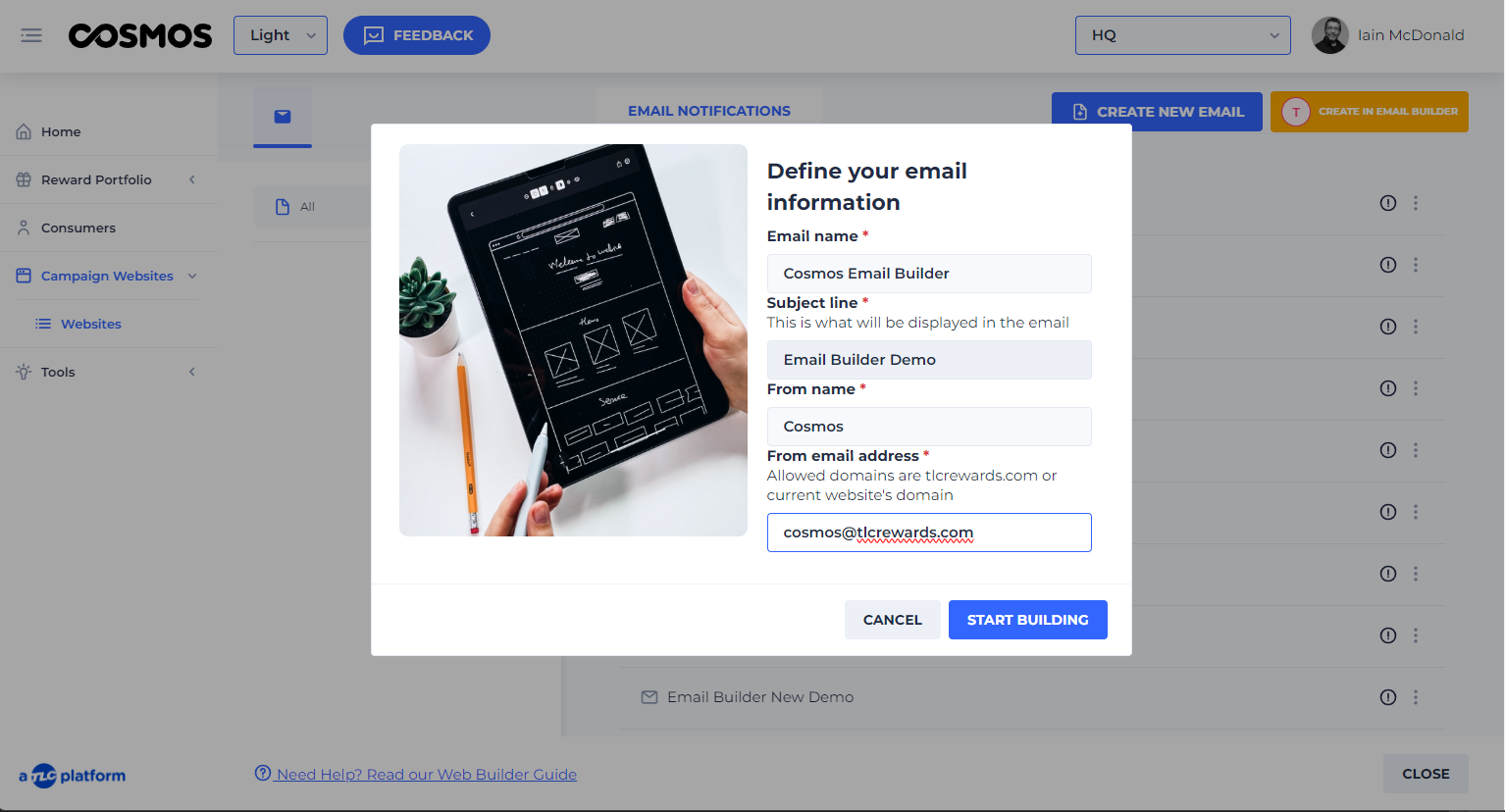
Select the yellow button 'Create in Email Builder' and fill out the fields in the pop up window. The following fields must be filled in:
-
Email name - This is the name of the email for your own reference, for example 'Confirmation', 'Approved', 'Declined' etc
-
Subject line - The subject of the email. This will be displayed on the email
-
From name - Usually the name of the campaign
-
From email address - This has to include either the campaign domain name or tlcrewards.com as the email address
When the fields are completed, click the 'Start Building' button.
2. (Write the step here. Use a verb to start.)
2.1. (Substep 1)
2.2. (Substep 2)
(Sub-task)
...
(This section is optional. Include a sub-task only if the task is big and complex.)
See also
(Include references and/or links to other related documentation such as other how-to guides, conceptual topics, troubleshooting information, and limitation details if any.
- Reference link
- Concept link
- Troubleshooting link)