Winning Games Consumer Journey setup
Reading time: 15 mins
Video
Full step by step video
Overview
This guide explains how to set up a Winning Games Consumer Journey for a website on Cosmos, what different types of algorithms are available in the winning game, and when to use each one.
Before you start
- Create a Listing for the website with one or more Listing Pots for each tier
- Create your Claim Notifications and Redemption Notifications (email or SMS)
Step by Step
Create a Winning Game mechanic and prepare consumer journey for configuration
You will need a few elements of the consumer Journey ready so that you can select them in your winning games algorithm configuration and set up your web pages. You will need to prepare: your Claim Journeys, Participation Route and Participation Form
-
Navigate to the website on Cosmos
-
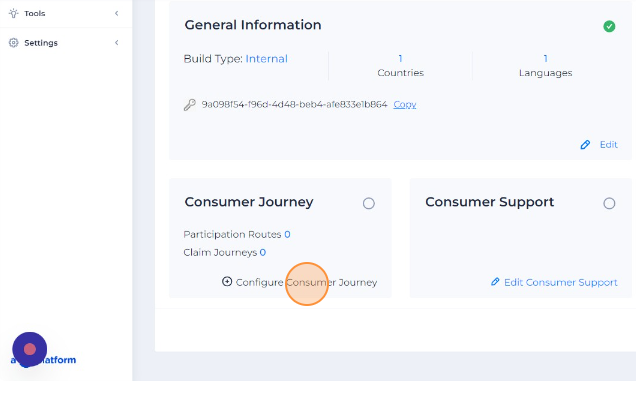
Click "Configure Consumer Journey" on the Consumer Journey tile
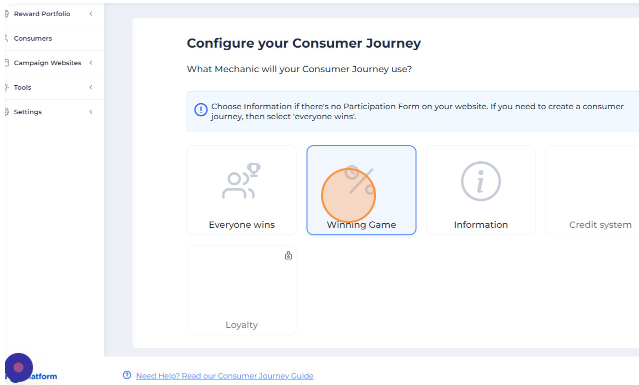
- Select the Winning Games Mechanic in the Consumer Journey tile
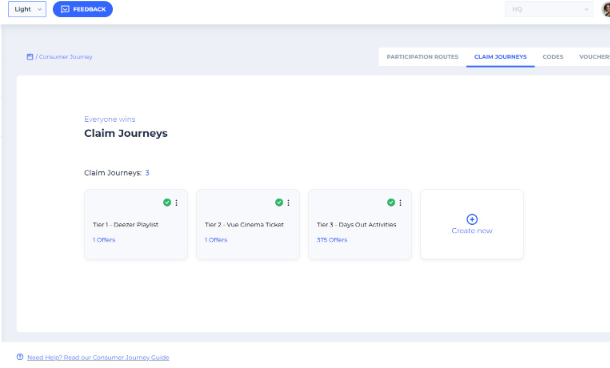
- Create a Claim Journey for each Winning Tier, using your Listing Pots and Redemption Notifications.
Once this is complete, there should be a tile for each tier on your Claim Journey tab, and each tile should have a green tick
-
Create your Participation Route
-
In your Participation Route create your Participation Form
Create your webpage structure
You will need to have some website pages ready in the Web Builder in order to configure your Winning Games algorithm. It is recommended to include the pages with basic functionality so you will be able to test your user journey flow end to end, even if you are not ready to fully design your pages.
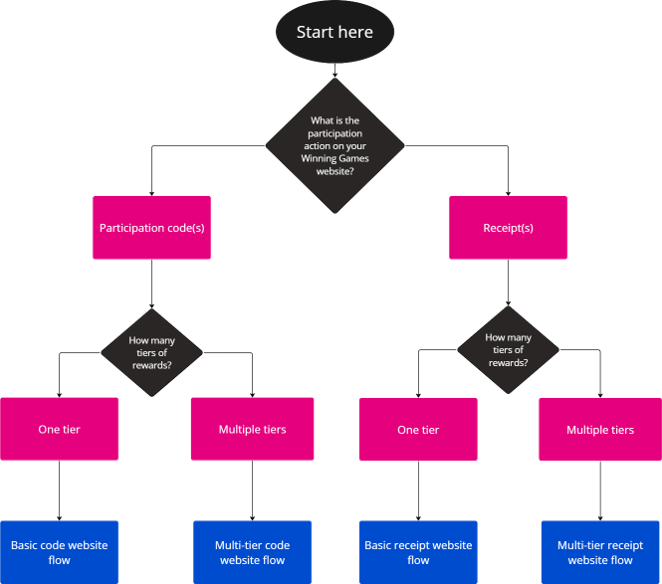
You can use this flow diagram to quickly figure out what pages you will need. The four options below are the most common website page setups used for Winning Games.
What pages do I need?
Minimum pages for all Winning Games sites
In order for the website to work, every Winning Game website must have in the Web builder and included in the Consumer Journey:
- A Participation page with a Participation Form component
- A Listing page with an Offer Listing form component - where the consumer selects their offer
- A Final Offer page with an Offer Details Component - where the consumer claims their offer
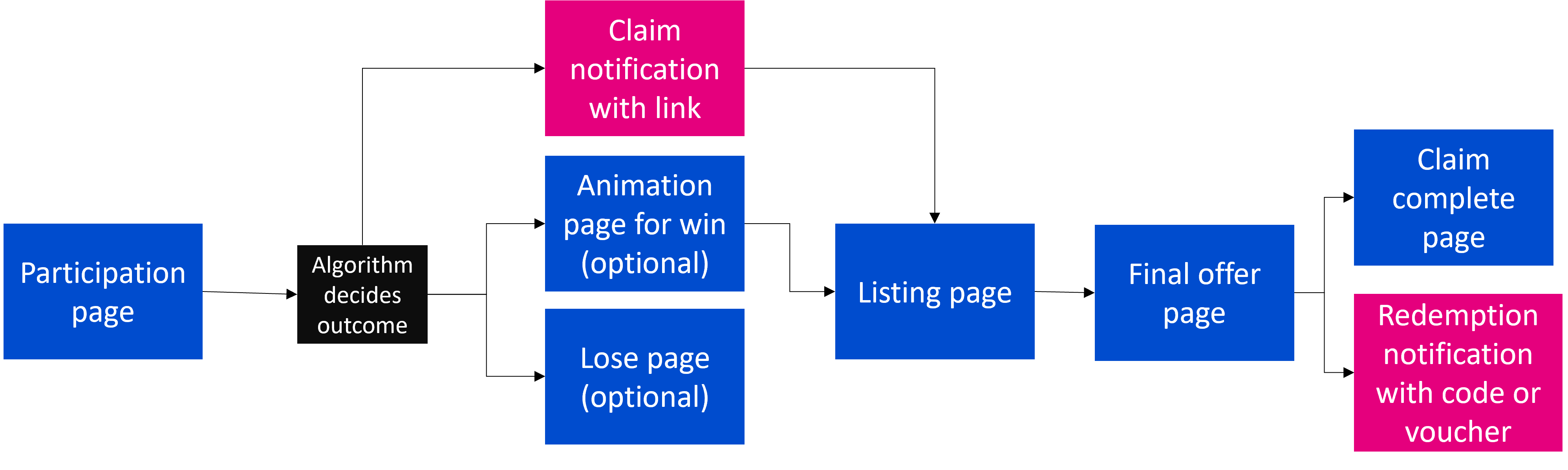
Basic Code Website Flow
This is the simplest flow with the least amount of pages. The animation page is optional. Please note that you can use this flow for multiple tiers if you don't have a 'prize revealing' animation page and you are happy using the same listing page template for all tiers. This is a good way to save time if the offers on each tier are similar and can be displayed in the same way e.g. if every tier is a single brand partner offer, or every tier is a national network.
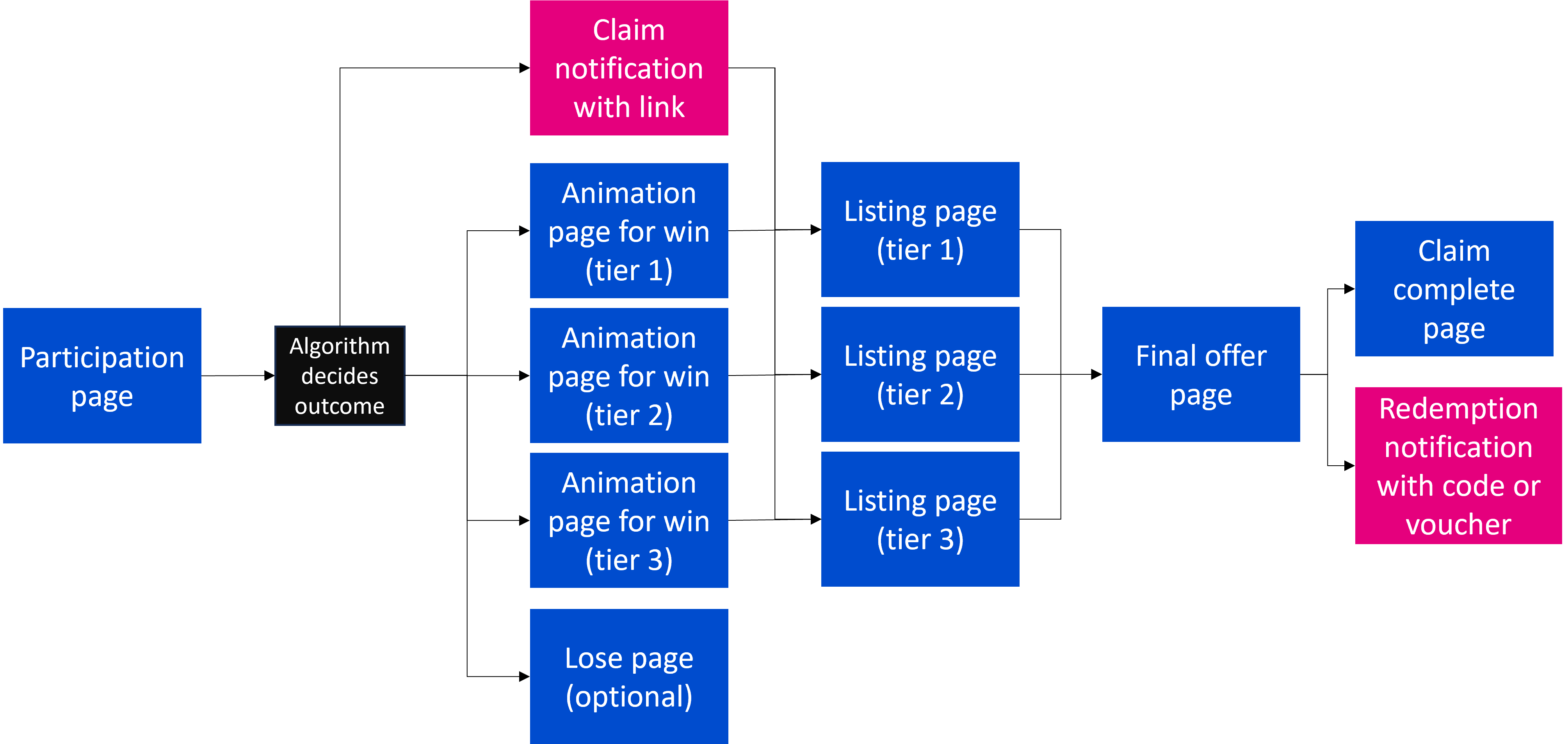
Multi-Tier Code Website Flow
Multi-tier enables you to reveal a different prize in the animation for each tier. It also enables you to have a different listing page template for different tiers, which is helpful if your tiers have offers that need to be displayed in a different ways e.g. a tier with one brand partner offer will need a very simple listing page, and a tier with a network of offers needs a listing page with maps, filters and search.
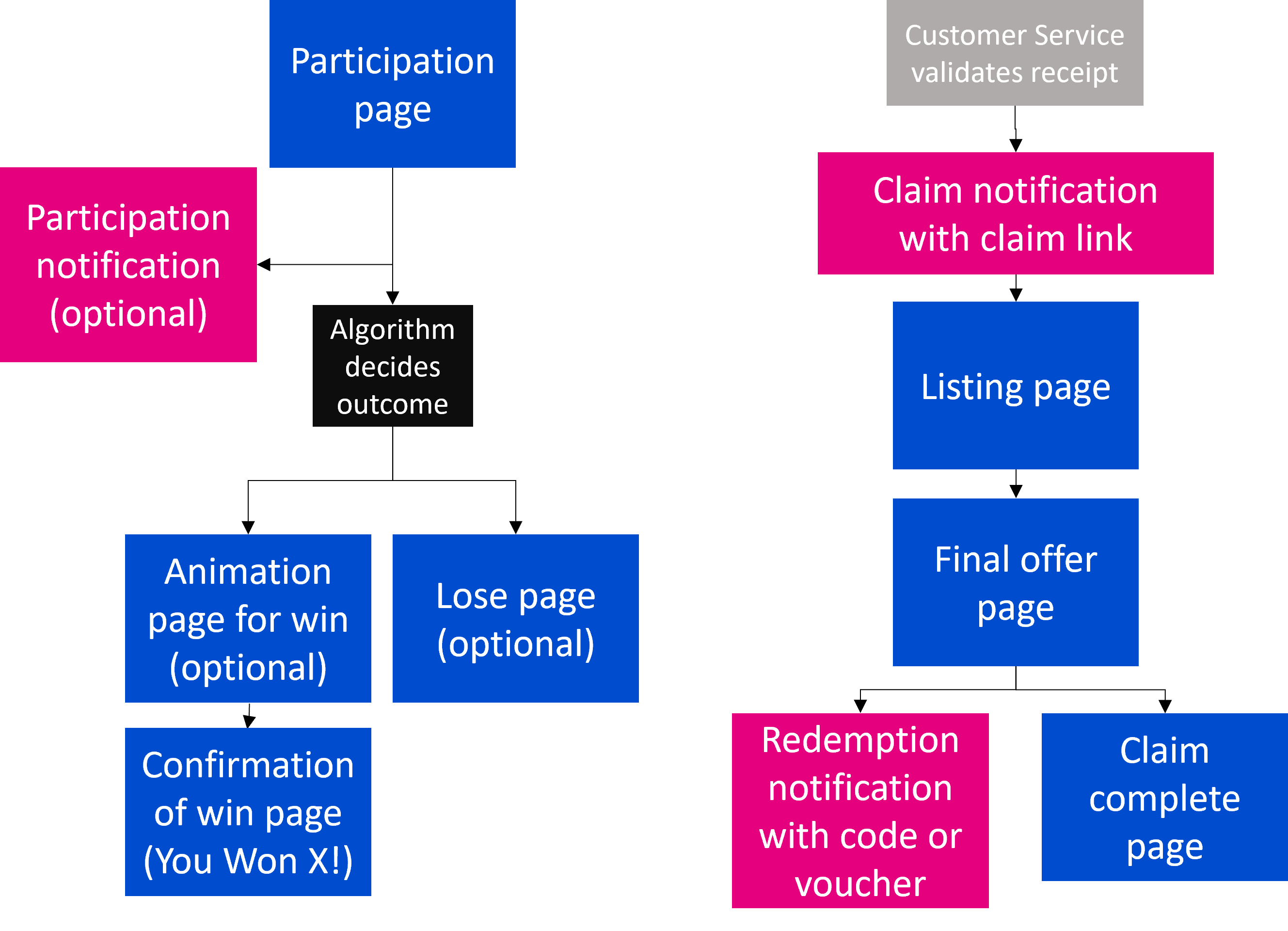
Basic Receipt Website Flow
This flow is similar to the Basic code website flow (above) but is split into two to enable Customer Service to approve the receipt. This enables you to inform the customer what they have won before checking their receipt and giving them access to select their offer via the claim link in the Claim Notification. Please note that currently, if you choose to send a Participation Notification, it will be the same Participation Notification for all consumers regardless of win, loss or tier.
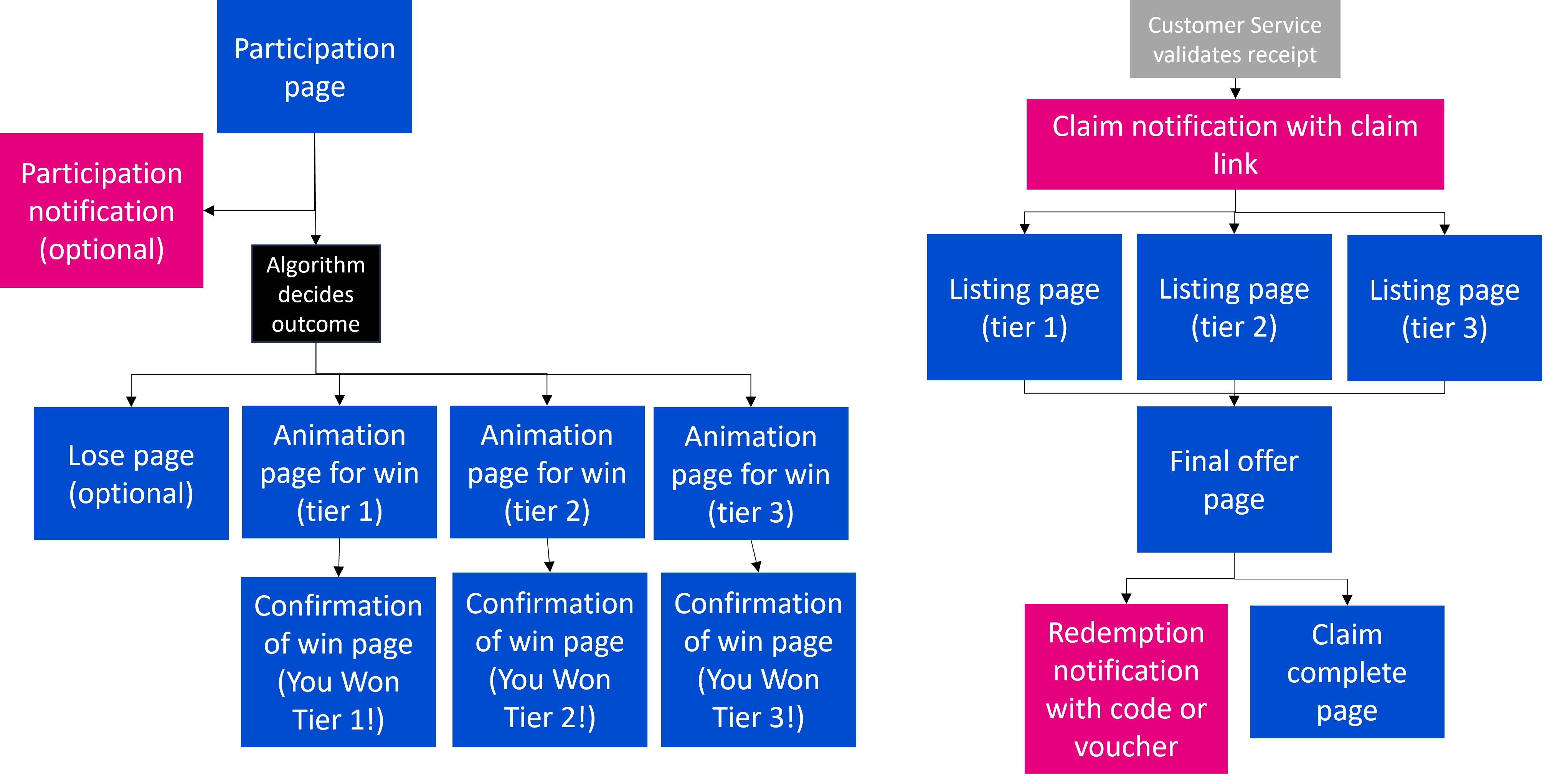
Multi-tier receipt website flow
This flow is similar to the Multi-Tier Code Website Flow (above) but is split into two to enable Customer Service to approve the receipt. This enables you to inform the customer what they have won before checking their receipt and giving them access to select their offer via the claim link in the Claim Notification. Please note that currently, if you choose to send a Participation Notification, it will be the same Participation Notification for all consumers regardless of win, loss or tier.
On the Web Builder
Animation page
If you have an animation page, this is the page that the consumer will arrive at after they have submitted their Participation Form. The link between these pages is created on the Winning Games configuration in the Consumer Journey (below), not on the Web Builder.
-
On the animation page you will need to include a Video Component. You will also need a Call to Action component. The preview will look like the second image below.
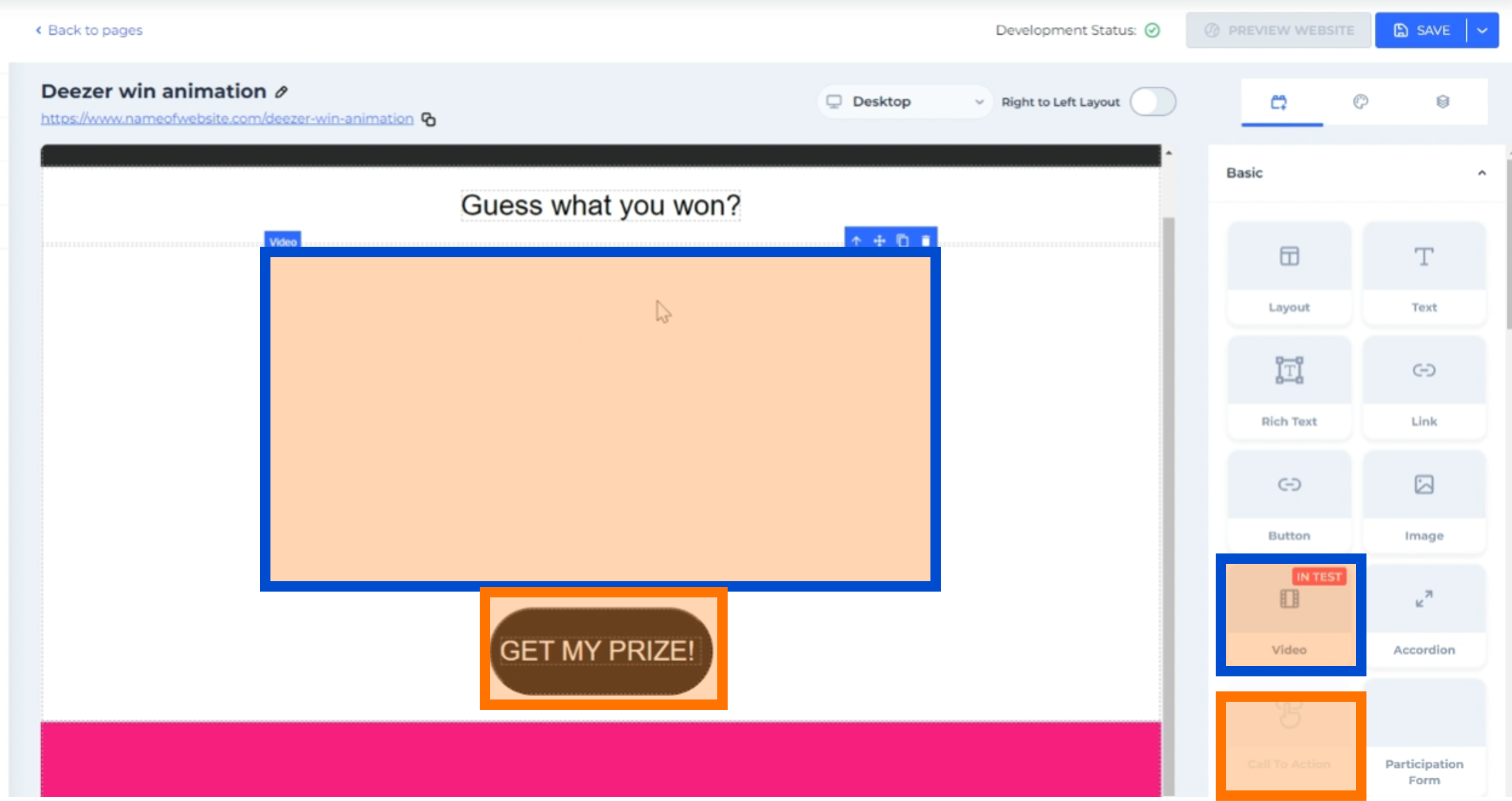
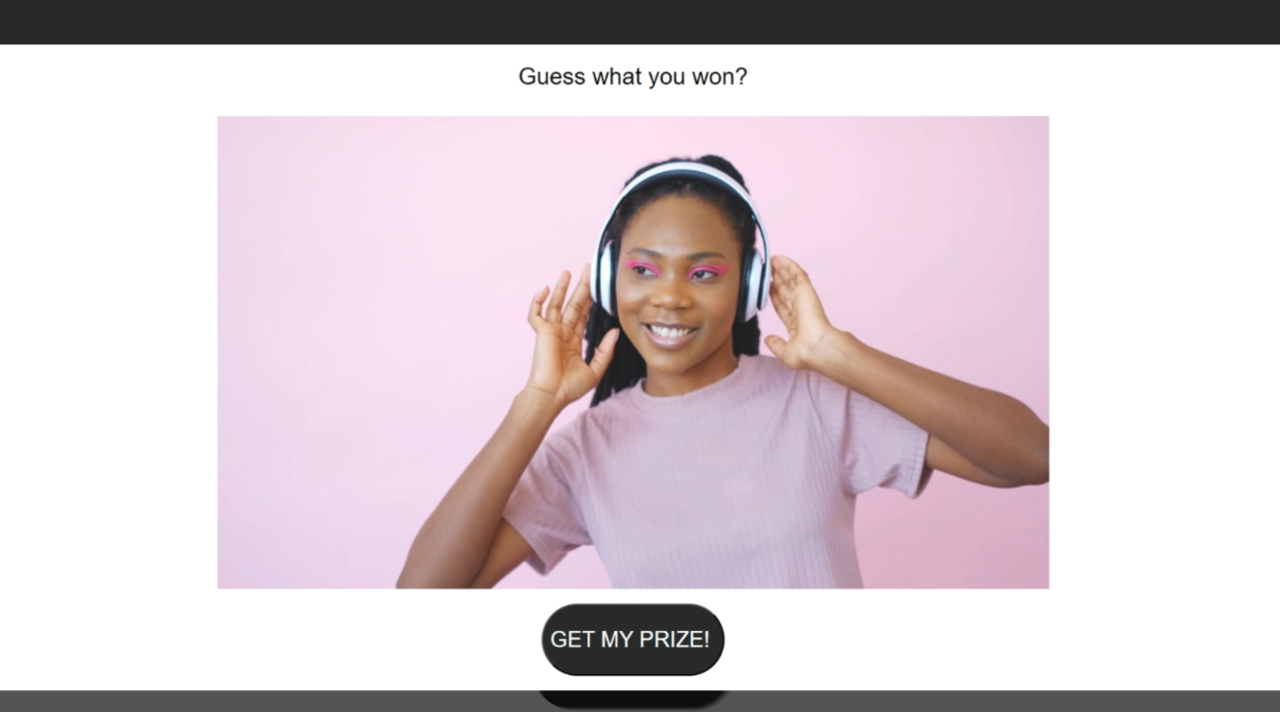 For the consumer, the CTA component will appear on the page after the animation has completed.
 -
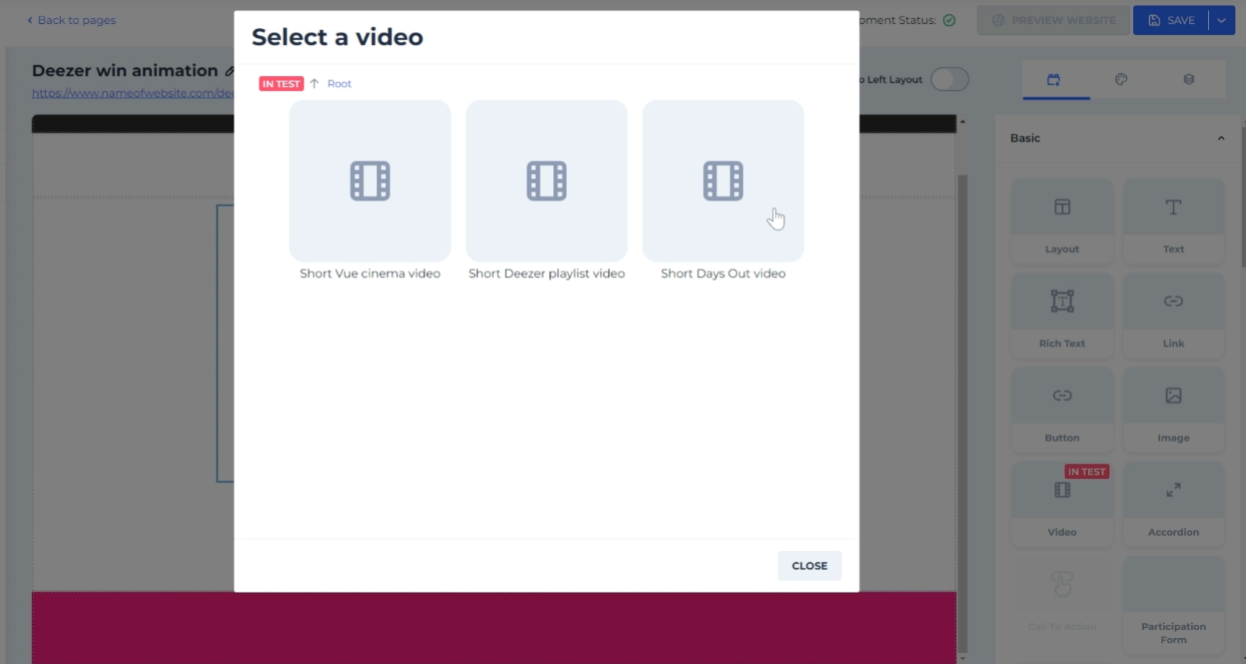
Click on the area of the page with the Video Component and select the video from your website Asset Library
-
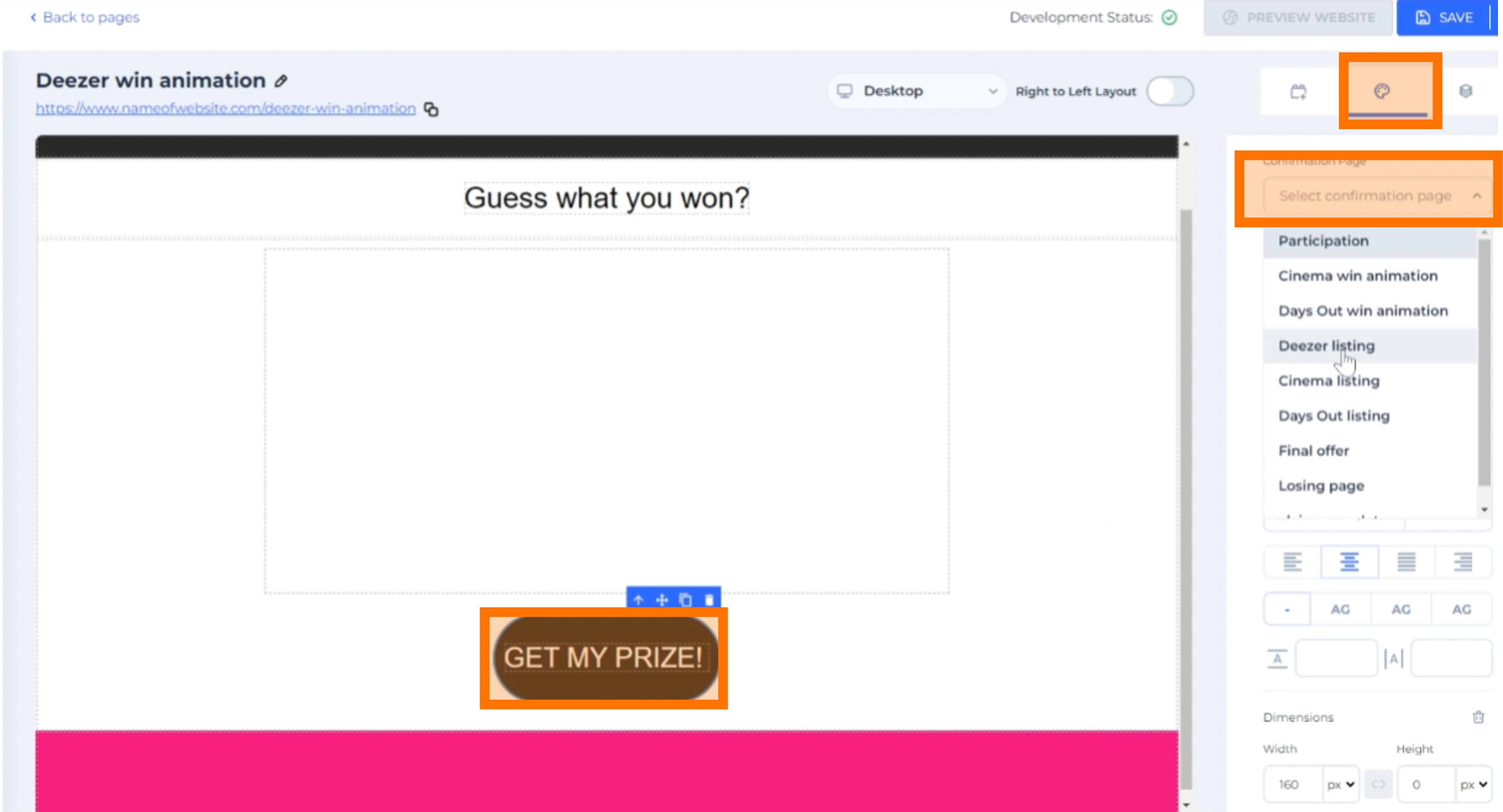
Set the next page you want the consumer to be directed to by selecting the Call to Action Button on the page, navigating to the Styling Tab in the right panel and selecting the correct page from the Confirmation Page drop down list.
Configure your Winning Games algorithms
- Navigate to the Consumer Journey area of your website
- Select the Participation Route you want the Winning Game to be on
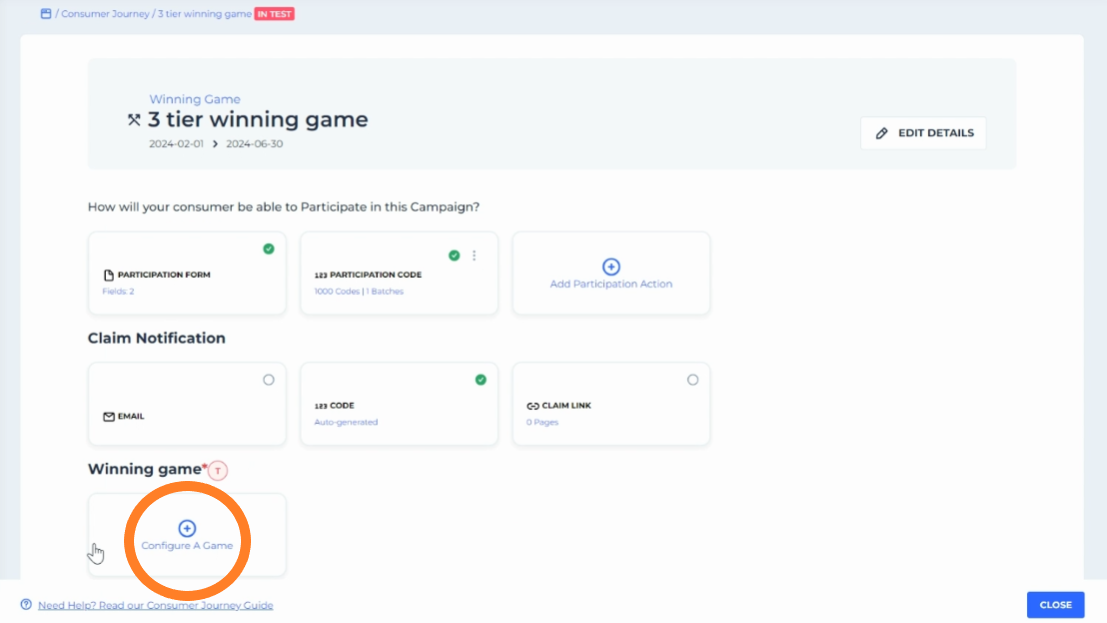
- Click "Configure a Game" in the Winning Game section
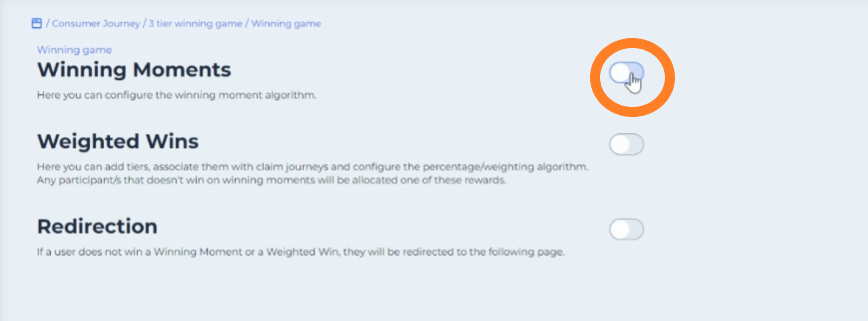
- Toggle on the sections that you need for your Winning Game - Winning Moments, Weighted wins and Redirection. Each section is explained below
Winning Moments
Winning Moments sets a fixed number of wins for each tier of rewards based on randomly generated timestamps. After the timestamps are generated by Cosmos, the first consumer to participate after each timestamp will be the winner of that winning moment.
Use this when you want to manage financial risk for back end rewards. Or if the contract or legalities require a fixed or maximum number of each tier prize to be won.
To set up Winning Moments:
-
Toggle on Winning Moments
-
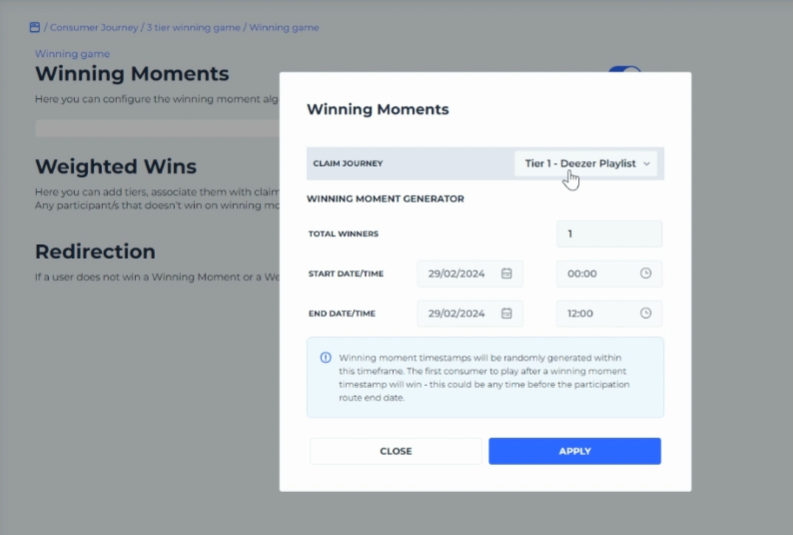
Select the Claim Journey for this tier of Winning Moments
-
Enter the total number of winners for this set of Winning Moments
-
Enter start and end time for this set of winning moments (Cosmos will randomly generate a time stamp for each winning moment between these start and end times)
-
Click "APPLY"
-
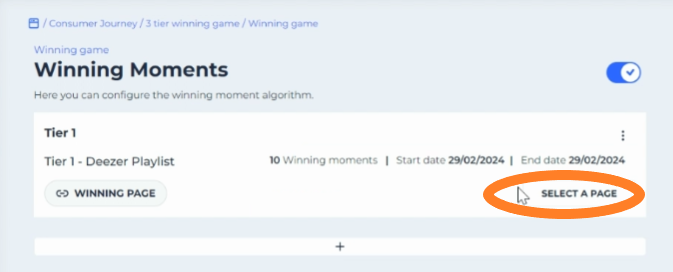
Select the 'WINNING PAGE': this is the page that you want consumers to be directed to, to find out they have won this prize
-
select the 'VALID CODE' page: this is the page that you want consumers to be directed to if they return to the site via a claim link to select their offer - this should be the page containing the Offer Listing component.
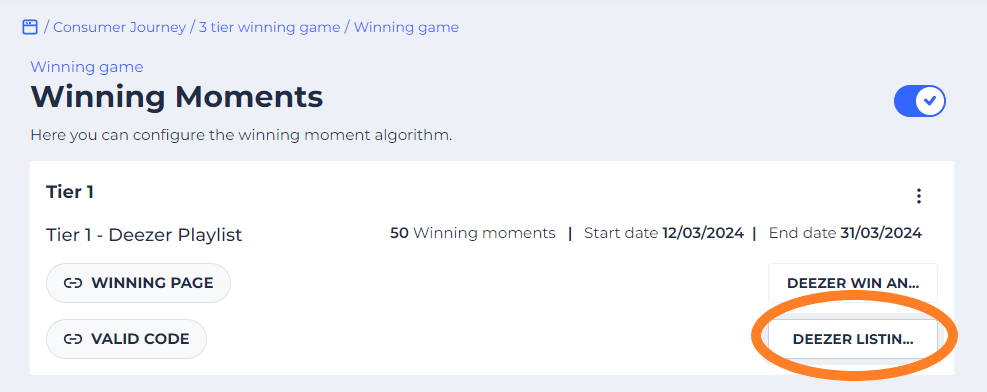
-
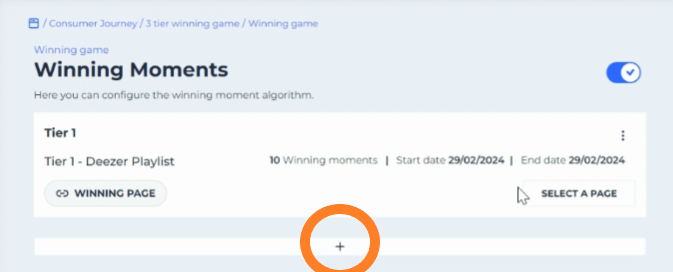
You can add multiple sets of winning moments during the campaign by clicking the '+' underneath the last Winning Moment. these can be used to:
- Create multiple tiers of rewards using Winning Moments
- Spread out the amount of wins for each tier across the participation period e.g. Claim Journey 1 tier can have 5 winning moments in week 1 and 5 winning moments in week 2
Weighted Wins
Weighted wins sets a percentage of wins per tier. This is good when you want to ensure a good spread of each tier, or weight the higher value tiers with a lower percentage, but there is no need to put an upper limit on the total number of wins, such as when there is no back-end-cost.
To set up Weighted Wins:
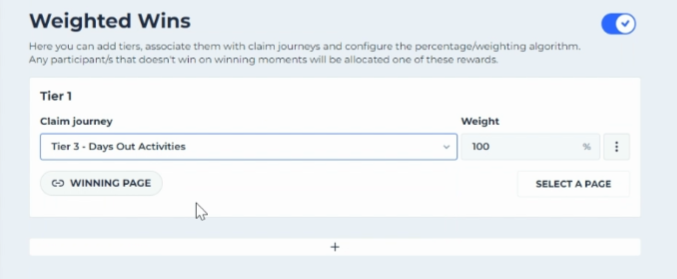
- Toggle on Weighted Wins

- Select the Claim Journey for this tier of Weighted Wins
- Enter the percentage of consumers that you want to win this tier of weighted Wins
- Select the 'WINNING PAGE': this is the page that you want consumers to be directed to, to find out they have won this prize
- select the 'VALID CODE' page: this is the page that you want consumers to be directed to if they return to the site via a claim link to select their offer - this should be the page containing the Offer Listing component.
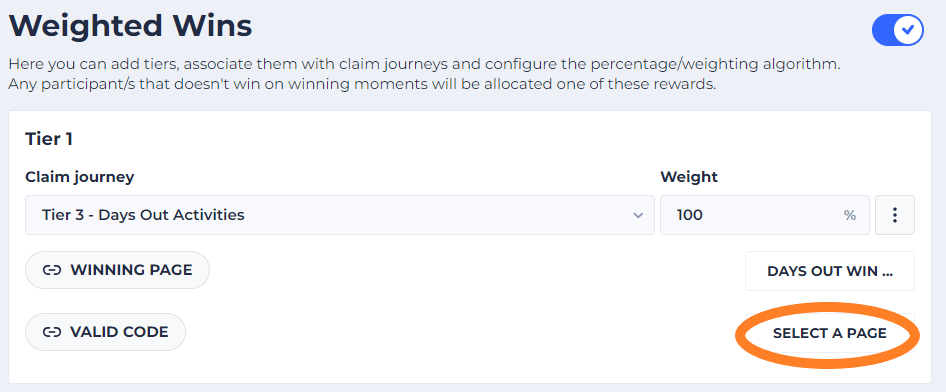
- You can add multiple sets of Weighted Wins during the campaign by clicking the '+' underneath the last Winning Moment.
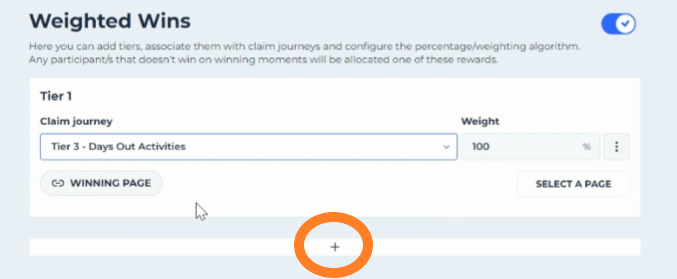 If all tiers in a Weighted Moment Game have percentages that total 100%, then there will be no losers. If all tiers in the Winning Moment game total less than 100%, then some consumers will lose
For example:
in a two tier Weighted Wins game
Tier 1: 30%
Tier 2: 30%
40% will lose and fall into 'Redirection'
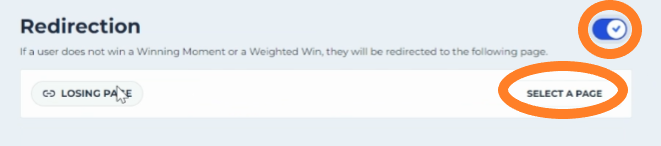
####Redirection Redirection is only required if some consumers will 'lose'. Consumers will be redirected to this page if they do not win any of the tiers from a Winning Moments or a Weighted Wins
To set up a Redirection
- Toggle on Redirection
- Select the page you want consumers to be redirected to
A note on combining
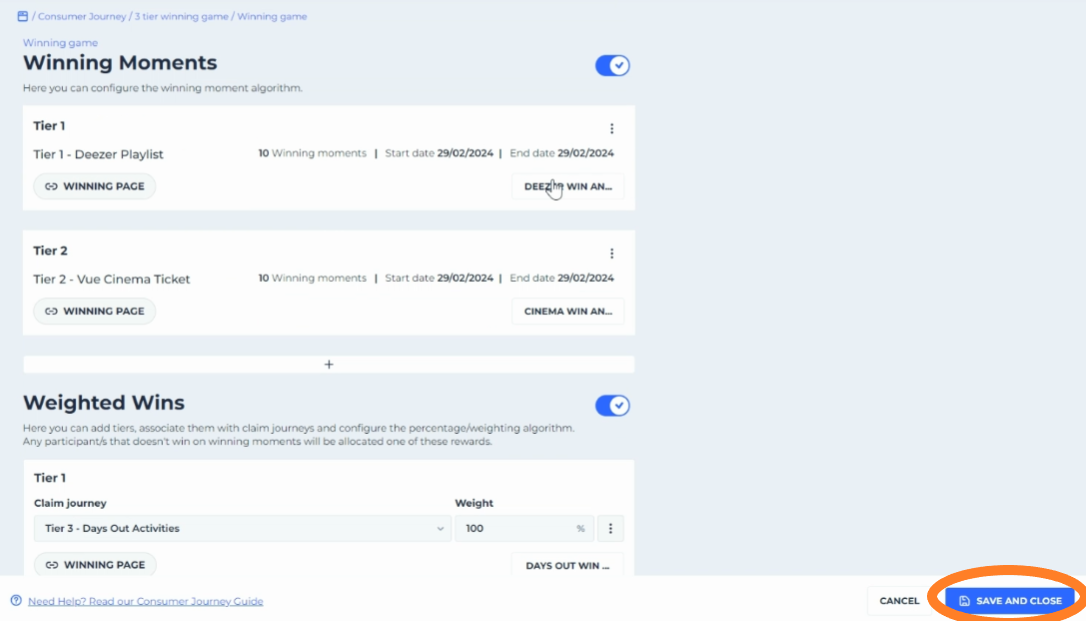
You can combine Winning Moments with Weighted Wins and Redirection. The Cosmos logic will prioritise Winning Moments if they exist in your Winning Game. If a Winning Moment is not won then the same consumer will 'fall back' to the Weighted Moment game. If a Weighted Moment is not won (or doesn't exist) then the same consumer will fall into 'Redirection'.
Save and test
- Save your Winning Game configuration by clicking "SAVE AND CLOSE"
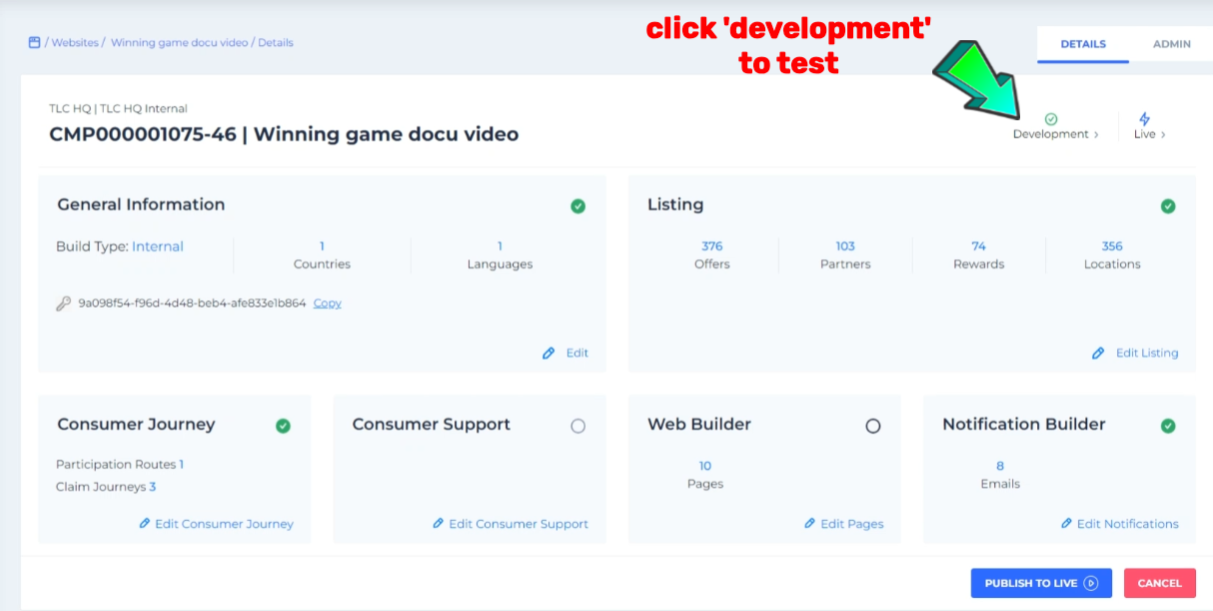
- Navigate to the Website page and select the 'Development' link to test your Winning Game Journey end-to-end
FAQs
How can I export the Winning Moments so that I can submit them to a regulator or make an investigation?
To export your Winning Moments times, please rasie a ticket on HelpBot stating
- The campaign name and number
- The data you need to see in the report (column headers is most helpful!)
What happens to a Winning Moment when a winner's receipt is declined?
When a participation is declined for a consumer who won a Winning Moment prize, the prize is 'put back into the pot' to be won again by another consumer. The logic works like this:
-
Account Manager configures a Tier of Winning Moments in the website Consumer Journey area by specifying the desired number of Winning Moments (count) and timeframe (dates)
-
The Winning Moments are randomly generated, with timestamps down to the nanosecond, based on the selected count/dates
-
When a consumer participates, if there are Winning Moments available (in the past), the oldest is assigned to the consumer
-
When a Customer Service person declines a winning participation, the participation association to that Winning Moment is broken and at the same time, it is made available to be won again by another consumer who participates. This does not generate a new timestamp, but maintains it's original timestamp from step 2, so if it has become the oldest Winning Moment available, it will be the next one to be won by a consumer.
What time zone are winning moments based on?
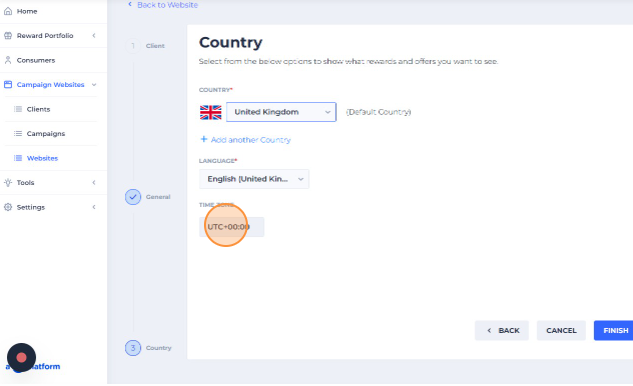
Winning Moments configuration is based on the time zone of country of the website, which you can see by following these steps:
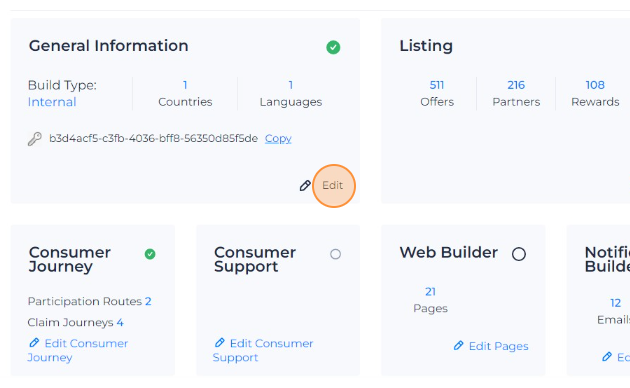
- Navigate to the Website page and click "Edit" in in the General Information tile
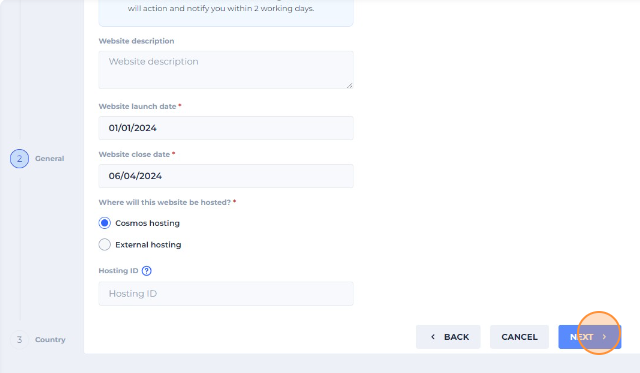
- Click "Next" and on the following page you will see the time zone. Please note that the time zone cannot be changed as it is related to the time zone of the country this website is set to
Can a winner get multiple claims in a Winning Games Mechanic?
Currently, using a Winning Games Mechanic means that each participant can only have one claim. Multiple claims within Winning Games Tiers has been requested as a feature improvement